If you want to know how to turn RSS feeds into an email digest, the short answer is: collect updates from the sites, channels and newsletters you follow in one place, choose a schedule, and send a short, readable summary with only the most useful links. You can do this with a reader that has built-in email digests, with an automation tool, or by using a scheduled digest feature made for this job.
Here, RSS means the standard feed many websites publish so other tools can pick up new posts automatically. In practice, you do not need to think much about feed URLs. You usually just paste the link to the website, YouTube channel or newsletter you want to follow.
Three ways to turn website updates into an email digest
You have three practical options.
| Option | Best for | What you do | Trade-off |
|---|---|---|---|
| Reader with email feature | People who want the simplest setup | Follow sources, pick a schedule, send the digest | Less flexible than custom automation |
| Automation tool | Teams with a very specific workflow | Pull new posts, format an email, send it through your email tool | More setup and more moving parts |
| Manual curation from one reading inbox | People who want full editorial control | Review the week's posts, choose a few, write the intro, send | Still faster than checking sites one by one, but not fully automatic |
For most teams and solo writers, the first option is enough. The real bottleneck is usually not delivery. It is collecting the right updates and making the email readable.
What makes an email digest worth reading
A digest is not just a long list of links. The best ones help the reader decide what deserves attention.
Keep these rules in mind:
1. Group related updates
Put stories into a few clear sections such as:
- Product launches
- Research and analysis
- Competitor moves
- Funding and market news
- Useful tutorials or talks
If everything sits in one long list, readers stop scanning.
2. Open with a short overview
Start with three to six sentences that answer:
- What changed this week?
- Why does it matter?
- What should the team pay attention to first?
This is the most useful part of the digest for busy readers.
3. Include fewer links
A digest with 25 links feels like homework. A digest with 5 to 10 good items feels manageable.
If you need to show more coverage, keep the main section short and add a brief "More links" section at the end.
4. Write one-line context for each item
Do not paste titles only. Add one sentence that says what happened or why it matters.
Bad:
- Company X launches new API
Better:
- Company X launched a new API for document search, which may put pressure on tools aimed at support and internal knowledge bases.
5. Keep the structure stable
If the digest arrives every week, readers should know where to look. Use the same order each time.
The basic workflow
No matter which tool you use, the process is the same:
- Follow the sources you care about.
- Collect all new posts in one place.
- Filter out noise.
- Review what was published in the last day or week.
- Write a short overview.
- Send the digest on a schedule.
The step that usually breaks is number 1. People start with a few blogs, then add YouTube channels, Substacks, Reddit threads, GitHub releases and research sources, and soon the list is too scattered to manage by hand.
Do it with Repurai
Repurai is useful here because it handles both collection and sending. It checks the sources you follow about every hour, lets you review what changed, and can send email digests for chosen Spaces or individual feeds on a daily or weekly schedule. Those digests open with an AI-written overview of the stories.
A Space in Repurai is just a group of sources for a topic, client or project.
1. Put your sources into one Space
Create a Space for the digest topic, such as:
- AI infrastructure n- Fintech competitors
- Client industry updates
- Developer tools weekly
Then add sources by:
- pasting a website or channel link
- searching for a topic
- bulk-importing links
- importing your list of sources from another reader
Supported public sources include blogs, YouTube channels, Substack, Medium, beehiiv, Ghost, WordPress, subreddits, Hacker News, GitHub releases and repositories, Google Scholar, arXiv, Bluesky and Mastodon, subject to what each platform makes publicly available.
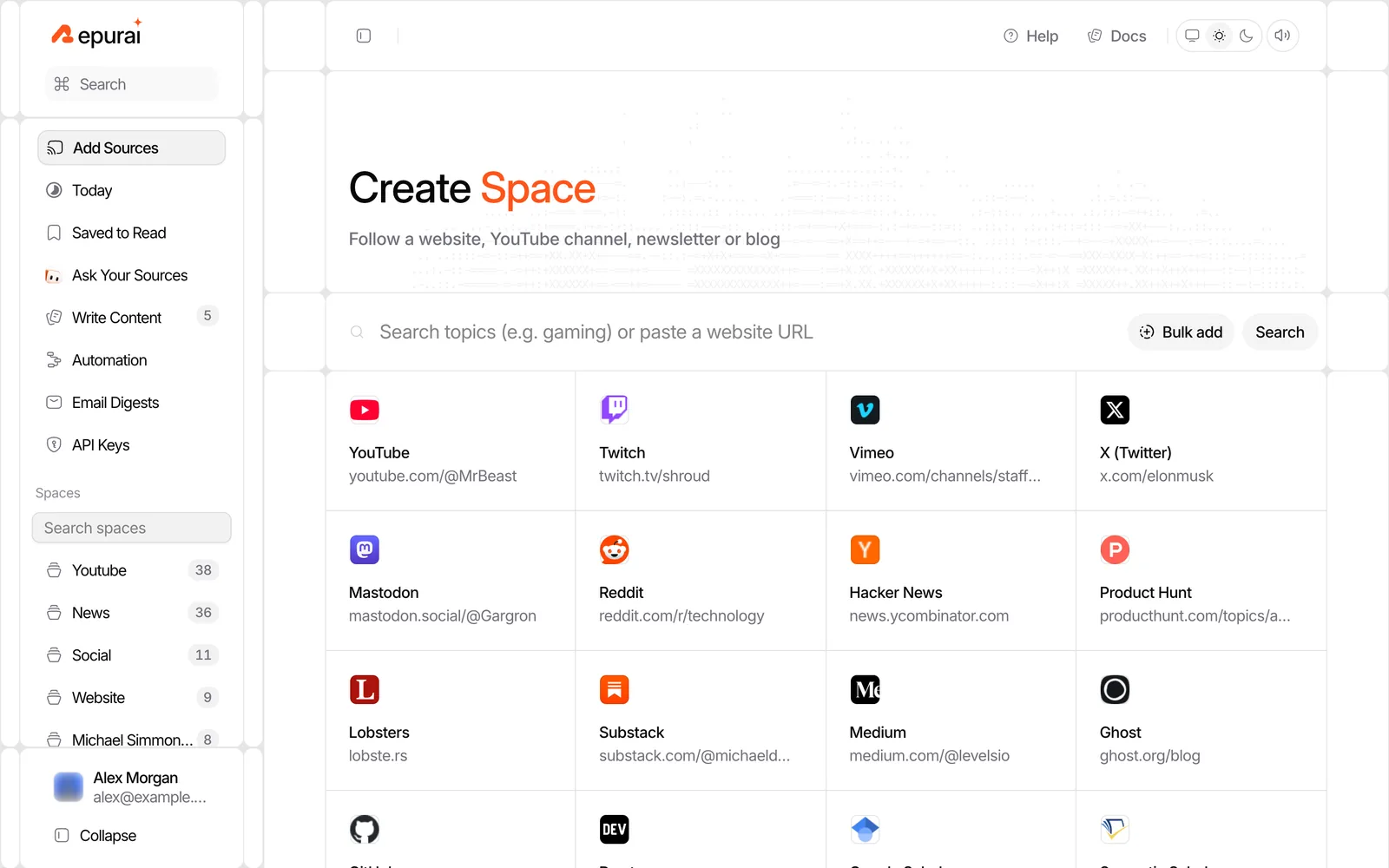
Once your Space is set up, Repurai refreshes sources automatically about every hour, and you can also refresh manually.
2. Review the week's posts in one reading inbox
Open the Space and scan what came in. You can switch between Card, Magazine, Article and List layouts depending on how you prefer to review updates.
Use search when you need to check whether a topic came up across all your sources. Save the strongest items to read later if you are narrowing a longer list into a short digest.
If one source creates noise, add feed filters to hide posts by keyword, author, link or length without deleting the source.
This matters because a digest gets much better when you remove routine posts, job ads, minor changelogs or repeated roundups.
3. Use summaries to triage, then check the original post
Repurai can show AI summaries for articles, and for YouTube videos when captions are available. That helps you decide what is worth opening first.
Use the summaries to sort the pile quickly, but check the original post before you repeat a claim in the digest.
If you want help spotting the main themes, use Ask your sources and limit it to the past week and the relevant Space. For example:
- What were the biggest product launches this week?
- Which sources discussed regulation this week?
- What themes kept appearing across these sources?
Answers are drawn only from your own sources and cite the posts.
4. Create the digest and choose the schedule
In Email Digests, create a digest, choose the Space or specific feeds to include, add recipients, and set the delivery schedule.
You can send it:
- daily
- weekly
- on chosen days
- at chosen hours
The email opens with an AI-written overview of the stories, then lists the selected updates.
This is the point where the weekly manual job turns into a repeatable process. Instead of assembling the update from scratch every Friday, you maintain the source list and filter rules, and the digest goes out on schedule.
A sample structure you can copy
Use this as an illustrative weekly digest template.
Subject line
Weekly industry update: 7 stories worth your time
Intro overview
This week was shaped by three themes: new product launches, more discussion of pricing pressure, and a noticeable rise in practical how-to content. The biggest shift was in developer tooling, where several sources focused on faster deployment and lower-cost workflows. If you only read two items, start with the launch from Source A and the market analysis from Source B.
Section 1: What changed
- Source A: New feature launch with direct impact on enterprise teams.
- Source B: Market analysis showing where demand is shifting.
- Source C: A detailed technical post that explains the implementation trade-offs.
Section 2: Why it matters
- More vendors are moving from general claims to workflow-specific products.
- Buyers now have clearer comparisons on cost and setup time.
- The conversation is shifting from novelty to integration.
Section 3: Read these first
- Launch announcement from Source A
- Analysis from Source B
- Tutorial or talk from Source C
Section 4: More links
- Short item 1
- Short item 2
- Short item 3
Checklist: make your digest easier to read
Copy this before you send:
- Did I keep the intro under 120 words?
- Did I group items into clear sections?
- Did I cut weak or repetitive links?
- Did I add one line of context for each item?
- Did I check any important claim against the original post?
- Did I keep the format consistent with past issues?
When to use automation tools instead
Use an automation tool if you need the digest to pass through another system first, such as a custom email workflow, an internal approval step, or a database that stores each item before sending.
In that case, the same editorial rules still apply. The automation only changes delivery. It does not fix a noisy source list or an unreadable email.
If you first need the feed URL for a site, try the RSS Feed Finder. If your problem is choosing what matters from a long article, the Article Summarizer can help you triage a single link.
Limits
This does not work well if your sources do not publish public updates, if a video has no captions and you need a transcript-based summary, or if the team expects a deep analyst report rather than a digest.
You still need to check original claims before repeating them. An AI-written overview is useful for speed, but it is not a substitute for judgment.
Plans can affect which automation features are available, so check /pricing if you need plan-specific options.
If you want your sources, summaries and drafts in one place, you can try Repurai free.
FAQ
Can I turn any website into an email digest?
You can turn most public websites that publish a feed or detectable updates into a digest. In practice, many tools let you paste the site link and find the feed for you.
How often should I send a digest?
Daily works for fast-moving topics. Weekly is better when readers want a short industry update instead of constant alerts.
What is the best length for a weekly digest?
Shorter than most people think. A brief overview plus 5 to 10 links with context is usually easier to read than a long archive of everything published.
If you want to set this up in one place, start here: /signup.